A little help
Set up, then ride.
Use your Android phone or bike screen. Do the setup while parked.
Install the beta
Download the app
On your phone or bike screen, tap Download or scan the code on the home page. You do not need a cable, and you do not need any developer settings.
Download the betaLet the browser download it
If asked, tap Download. Chrome may say the file might be harmful. That is normal for an app that is not from the Play Store. If you came from this site, tap Download anyway.
Open the file and allow the install
Open the downloaded file. If you cannot see it, open Downloads and tap the VargGPS file. If Android says it is not allowed to install unknown apps, tap Settings. On a wide screen, scroll down if you do not see the switch. Turn on Allow from this source.
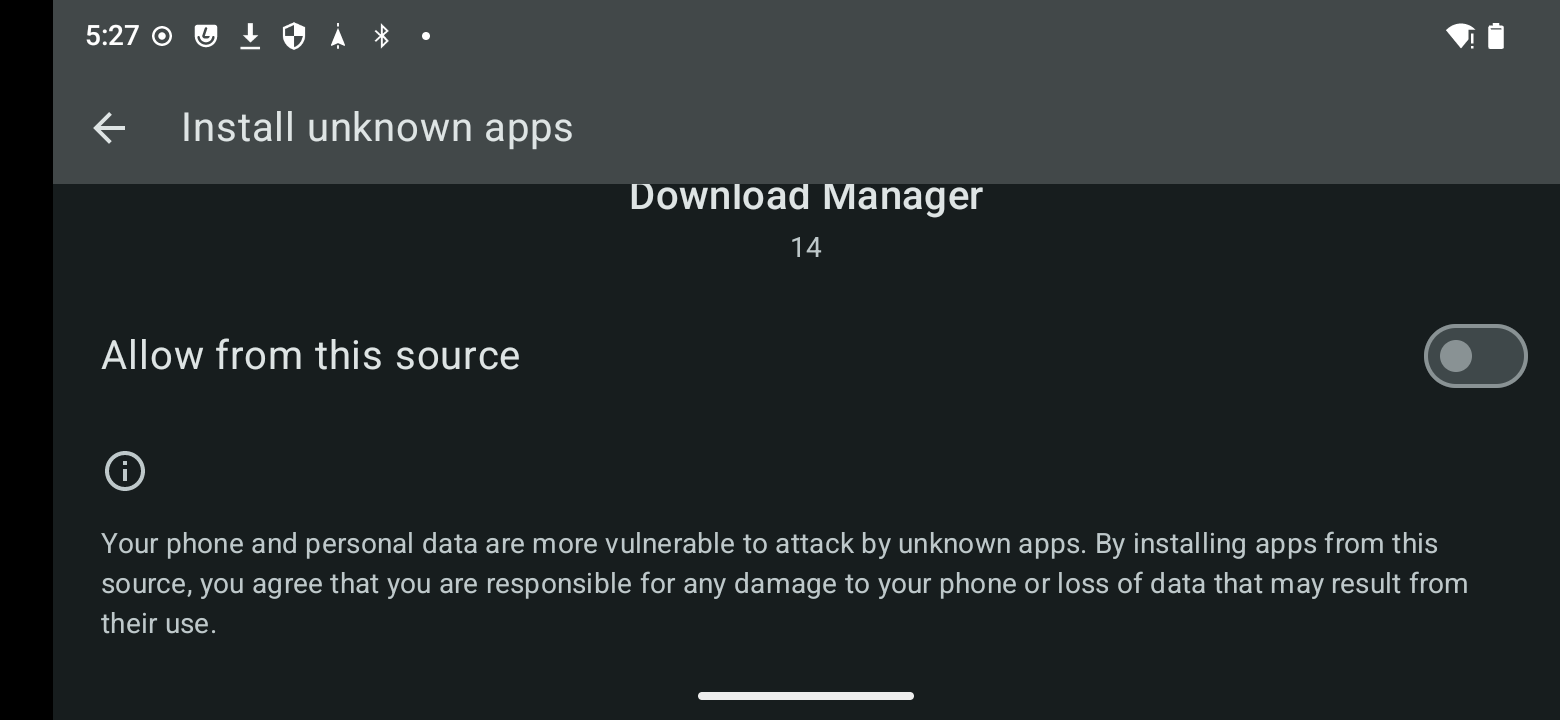
Scroll down if needed, then turn on Allow from this source. Install, then open
Tap Install, then Open, and follow First start below. If Play Protect shows App scan recommended, tap Scan app (recommended). If it warns about an unknown app, tap More details, then Install without scanning or Install anyway. The words can differ by phone. Keep protection on. If that option is not offered, stop and wait for a newer build.
See all four steps with pictures. Android 13, 14 and 15 use this same kind of switch for each app. Names can differ a little by phone.
Get an update
The app checks for new versions automatically and downloads an available update inside the app with a progress bar. You can also choose Check for updates. You can return to the map or setup while it downloads. If a download fails or is interrupted, the next attempt starts again from the beginning.
After the download is checked, installation proceeds when you are parked and the app is active. If Android needs installation permission, choose Allow & continue and follow the settings shown. Follow any Android installation or scan prompts, then open the updated app. Update complete appears only after the app confirms the new version is installed.
First start
- While connected and parked, read and accept the agreement and data notice, then sign in with Google. Google services must be available on your device.
- Follow the setup prompts to allow precise location and turn on location if asked.
- The app prepares its startup files and downloads the map for your area automatically. Keep a connection until setup finishes. If it cannot find your area, follow the map choice shown.
- Allow Floating map when asked if you want the small map over your dashboard.
After activation and setup, downloaded maps, navigation, recording and settings work offline. Download any other riding regions before losing signal. Friends sharing needs a connection. Sign-out or account deletion on this phone clears activation; online Google sign-in is required before use again. Maps and tracks remain.
Next, open your bike screen, Google Maps or Waze.
Install trouble
- “File might be harmful”? Chrome can show this for an app file. Check that you used the download button on this site before you continue.
- Can’t find the file? Open Downloads in Chrome or the Files app. Look for the VargGPS beta app file.
- “App not installed”? Free some storage. The app is for recent Android phones and the bike screen.
- Play Protect blocks it? If Play Protect shows App scan recommended, tap Scan app (recommended). If it warns about an unknown app, tap More details, then Install without scanning or Install anyway. The words can differ by phone. Keep protection on if offered. If there is no such option, stop and wait for a newer build. Leave protection on.
Back to the bike screen
- On the map, tap Varg App.
- Choose Stock Stark or VargPilot. Your dashboard opens with the map in a small window.
- Drag the small map where you want it.
To return to the full map, tap the small map, then Expand.
- No small map? In Ride setup, allow Floating map.
- Dashboard missing? Pick the other app, or stay on the full map.
- Map too small? Tap it, then Expand, while parked.
Google Maps and Waze
Both use the same two Android switches. You only need to allow them once.
Set up Google Maps
The Varg App button lets you get back to your bike screen.
- In VargGPS, tap Navigation, then Google Maps.
- If asked, allow Display over other apps for VargGPS, then go back. This puts the button on top of Maps.
- If asked, allow Usage access for VargGPS, then go back. This shows the button only when Maps is in front.
- Allow location in Google Maps if asked.
- Start a route in Google Maps while parked.
- Tap Varg App at the top right. The dashboard opens with Google Maps in a small window.
- Tap the small map, then Expand, to go back.
Double-tap the small map to make it larger. Without a route, Maps will not stay in a small window. Use the built-in map to follow your position without a destination.
If something goes wrong
- No button? In Ride setup, tap Floating button and allow Display over other apps.
- Button stays after leaving Maps? In Ride setup, tap Which app is open and allow Usage access.
- Maps stays large? Start a route. If needed, allow Picture-in-picture under Android Settings, Apps, Maps.
- Button in the way? Hold and drag it. Maps remembers that spot.
Set up Waze
Switch between full-screen Waze and your dashboard. Waze does not use a small map window.
- Install and open Waze.
- In VargGPS, tap Navigation, then Waze.
- If asked, allow Display over other apps for VargGPS, then go back.
- If asked, allow Usage access for VargGPS, then go back. Skip these switches if you already allowed them for Google Maps.
- In Waze, tap Varg App to see your dashboard.
- On the dashboard, tap Waze to return.
No button? Check Display over other apps. No switch back? Check Usage access. Waze does not need the optional enlarge helper.
More help
Ride with friends · Put Strava beside your map
VargPilot covers the screen
VargPilot may open itself when the bike mode or charging state changes. This is a known limitation. Return to VargGPS when parked. Keep VargPilot permissions enabled if you need them to wake the bike screen.
Make Google’s small map larger
You can double-tap the small map yourself. An optional helper can do that for you on Android 12 or newer. The main app works without it.
- Tap Menu, then Google Maps options.
- Tap Enlarge Google Maps, then Download helper.
- Open the file and tap Install. Its name is VargGPS Auto-enlarge.
- Return to VargGPS and open Enlarge Google Maps again.
- Tap Turn on enlarge. In Android’s Accessibility page, turn on VargGPS Auto-enlarge and confirm.
- Go back. Enlarge should now be on.
This is a strong permission. It lets the helper notice Google’s small window and send a double-tap. It does not read the map. Allow it only for a helper you trust.
- Restricted setting? Open the helper’s App info. In its three-dot menu, choose Allow restricted settings if shown.
- Play Protect blocks it? Keep protection on and double-tap the map yourself.
- Older than Android 12? Double-tap the map yourself.
- Don’t want it? Tap Not now.
Get a newer beta
The app checks for new versions automatically and downloads an available update inside the app with a progress bar. You can also choose Check for updates. You can return to the map or setup while it downloads. If a download fails or is interrupted, the next attempt starts again from the beginning.
After the download is checked, installation proceeds when you are parked and the app is active. If Android needs installation permission, choose Allow & continue and follow the settings shown. Follow any Android installation or scan prompts, then open the updated app. Update complete appears only after the app confirms the new version is installed.
Friends in the same group need the same beta or newer.